How to Keep Your Monitor's Colours Accurate — A Complete Guide for Gamers, Photographers, Printers, and Video Editors
A complete guide to monitor colour accuracy — what to buy, which certifications matter (Calman, Pantone, VESA DisplayHDR, Fogra), how operating systems handle colour, and how to keep your panel accurate for years.
Open a photo on your laptop, then on your phone, then on a friend’s monitor. Three different reds. Three different skin tones. Sometimes three completely different moods. That’s the colour problem, and it’s the reason designers, photographers, video editors, and even competitive gamers care deeply about what their screen actually shows them.
But here’s the catch: not every user needs the same monitor. A pro gamer chasing 540 frames per second has nothing in common with a print retoucher matching skin tones for a magazine cover. The “best” monitor is the one that fits the work — and there are now four well-defined categories of buyer, each with their own priorities, certifications, and pitfalls.
This guide walks through all four, decodes the alphabet soup of certifications you’ll see on monitor boxes, and explains why your operating system matters as much as the panel itself.
What “Accurate Colour” Actually Means
Every monitor is trying to hit a target — an industry-defined colour standard that says “this exact shade of red should look like this.” The most common targets are:
- sRGB — the universal web standard, designed in 1996. Roughly 90% of all digital content (photos, websites, social media, YouTube) is created and consumed in sRGB. It is the safest default.
- Adobe RGB — a wider gamut developed in 1998 for the printing industry. Captures more vivid greens and cyans than sRGB, which matters when an image will be printed on glossy magazine paper or fine-art photo paper.
- DCI-P3 — the digital cinema standard, used in modern Hollywood productions and increasingly in HDR video. Roughly 25% wider than sRGB.
- Rec. 709 — the HDTV broadcast standard. Practically identical to sRGB in gamut, with slightly different gamma.
- Rec. 2020 — the next-generation ultra-wide gamut for 4K and 8K HDR content. Covers around 75% of all visible colours. No current consumer display can fully reproduce it.
Accuracy is measured in delta E — a single number representing how far a displayed colour drifts from the reference. Lower is better. Delta E under 2 is the threshold below which the human eye cannot reliably tell the difference. Delta E under 1 is reference-grade, the territory of $5,000+ mastering monitors.
The Three Layers That Make a Monitor Accurate
Three things determine accuracy, in order of importance:
1. The panel hardware itself. Wide-gamut IPS, mini-LED, OLED, and QD-OLED panels can physically display a wider range of colours. A cheap TN panel found in budget gaming monitors lacks the chemistry to display Adobe RGB greens. No software calibration can add colours the hardware cannot produce.
2. Factory calibration. Pro monitors (ASUS ProArt, BenQ SW/PD series, EIZO ColorEdge, Apple Pro Display XDR, NEC SpectraView) include a per-unit calibration report in the box — a printed sheet showing exactly what your specific monitor measured at the factory. Each individual unit is tested with a lab-grade colorimeter and tuned to delta E under 2. Cheap monitors skip this and ship with a generic one-size-fits-all profile that may be off by delta E 5 or more.
3. Hardware LUTs (lookup tables). Pro monitors include internal lookup tables — 10-bit, 14-bit, or 16-bit colour processing chips inside the monitor itself. When you switch presets like “sRGB Mode” or “Adobe RGB Mode,” the monitor’s own processor remaps every pixel in hardware before it reaches your eyes.
This is the critical point most buyers miss: hardware-level calibration cannot be undone by software. The OS, the GPU driver, even a misconfigured colour profile cannot override what the monitor’s internal LUT is doing. That’s why pro monitors stay accurate across operating systems while software-calibrated displays drift the moment you reboot or change a setting.
The Four Buyer Categories
1. Gamers — Speed Over Spectrum
Priorities: refresh rate, response time, input lag, low idle draw. Colour accuracy is a bonus, not a requirement.
The data: - 60 Hz = 16.7 ms per frame - 144 Hz = 6.9 ms - 240 Hz = 4.2 ms - 360 Hz = 2.8 ms - 540 Hz (current bleeding edge) = 1.85 ms
The professional consensus is that 240 Hz is the practical minimum for competitive FPS, 360 Hz offers a noticeable edge in target tracking, and anything above 360 Hz is increasingly imperceptible to the human visual system — you’re paying a premium for diminishing returns.
Why 1080p still wins for gaming. A 1080p panel running at 240–360 Hz produces frames a budget GPU can actually push. Going 4K at high refresh rates demands an RTX 5080-class card minimum, and even then you’re often forced to use upscaling that introduces input lag.
Idle power matters. Gaming monitors run for long hours, often as a secondary “background” screen during streaming. OLED gaming monitors idle at higher power than IPS, and have burn-in concerns for static UI elements (HUDs, taskbars, scoreboards). Modern QD-OLED panels have largely solved this with pixel-shift and refresh routines, but it’s still a consideration.
What to buy (USD): - Budget competitive: AOC 24G2 or MSI G244F — 1080p / 165–180 Hz IPS, ~$150–180 - Sweet spot: LG 27GS75Q — 1440p / 200 Hz, ~$280 - High end: Alienware AW2725QF — 1440p / 360 Hz QD-OLED, ~$700 - Bleeding edge: ASUS ROG Swift Pro PG248QP — 1080p / 540 Hz, ~$900
Colour caveat: most gaming monitors cover 100% sRGB but only 80–90% DCI-P3. They are not for photo or print work.
2. Photographers — Resolution and Adobe RGB
Priorities: high resolution (4K or higher), 99–100% Adobe RGB coverage, factory calibration with delta E under 2, hardware LUT.
Why 4K. Photographers crop and zoom constantly. A 27-inch 4K panel gives you ~163 PPI — sharp enough to inspect 100% pixel detail without graininess. 1440p falls short for fine detail work.
Why Adobe RGB. Saturated greens and cyans (foliage, water, sky) live in the Adobe RGB gamut. If you shoot RAW and edit those colours on an sRGB-only monitor, you literally cannot see what you’re processing — when you export and view on a wide-gamut device or send to print, the colours will appear different from what you saw.
Required certifications: - Calman Verified — measured by Portrait Displays, the industry-standard calibration software lab. Uses a 19-colour test pattern. Confirms delta E < 2. - Pantone Validated — confirms accurate reproduction of the Pantone Matching System (PMS) colours. Especially important if your work feeds into print or branding. - Pantone SkinTone Validated — newer (2022) certification covering 110 skin tones across diverse ethnicities. If you photograph people, this is more useful than generic Pantone Validated.
What to buy (USD): - Entry: BenQ SW272U — 27” 4K / 99% Adobe RGB / hardware LUT / $1,000 - Sweet spot: ASUS ProArt PA279CRV — 27” 4K / 99% DCI-P3 + 99% Adobe RGB / Calman Verified / delta E < 2 / $620 - Pro: EIZO ColorEdge CS2740 — 27” 4K / 99% Adobe RGB / built-in self-calibration sensor / $2,000 - Reference: EIZO ColorEdge CG2700X — 27” 4K / 99% Adobe RGB / 98% DCI-P3 / built-in colorimeter / 5-year warranty / $4,500
3. Print Production — Soft Proofing and Fogra
Priorities: everything photographers need, plus D50 (5000 K) white point capability, ≥160 cd/m² stable luminance, and Fogra-grade certification for contract proofing.
Why this category is different. Print designers don’t just need accurate colour — they need their screen to predict how ink on paper will look. That requires hitting D50 (the print industry’s standard daylight) instead of D65 (the screen standard), and it requires meeting strict ISO standards.
The certifications that matter: - FograCert Softproof Monitor — the gold standard for print proofing. Confirms the monitor meets ISO 12646 (display requirements) and ISO 14861 (softproofing systems). Required for contract proofing in commercial print. - UGRA Display Analysis Report — Swiss prepress institute certification. Often paired with Fogra. - ISO 12646 — defines the technical requirements: D50 white point, ≥160 cd/m² luminance, gamma 2.2, delta E < 3.
What to buy (USD): - Working monitor: EIZO ColorEdge CS2740 ($2,000) — Fogra-compatible workflow - Reference standard: EIZO ColorEdge CG2700X ($4,500) — bundled with FograCert workflow tools - High-end: EIZO ColorEdge CG319X — 31” 4K / 99% DCI-P3 / 98% Adobe RGB / built-in calibration / $5,500
You will also need a hardware spectrophotometer (not just a colorimeter) for periodic recalibration. Calibrite Display Pro HL ($280) is the consumer-pro standard; X-Rite i1Pro 3 ($2,000) is the lab-grade tool that print houses actually use.
4. Video Editors — HDR, Wide Gamut, and Reference Modes
Priorities: wide gamut (DCI-P3 minimum, ideally with Rec. 2020 coverage), proper HDR support, reference modes for broadcast standards, sustained brightness for HDR grading.
Why HDR matters here uniquely. SDR video tops out around 100 nits. HDR content is mastered at 1000–4000 nits. To grade HDR accurately, your monitor must actually reach those brightness levels and hold them — not just briefly flash them on a small portion of the screen.
The VESA DisplayHDR tiers (the only HDR badge worth checking):
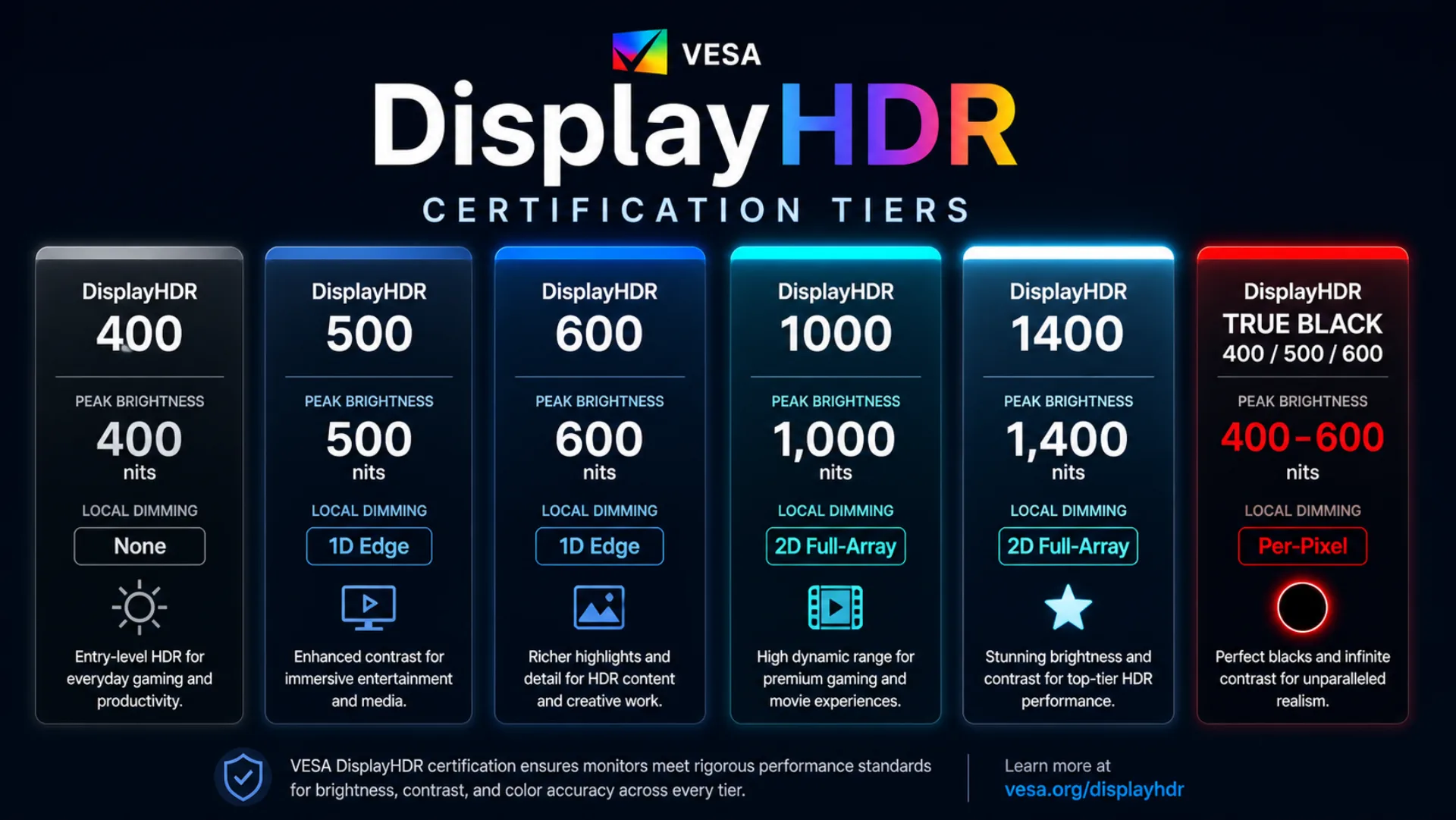
▸ DisplayHDR 400 — peak brightness 400 nits, no local dimming required. Mostly marketing — not real HDR. Skip for editing work.
▸ DisplayHDR 500 — peak brightness 500 nits, 1D edge-lit local dimming. Light HDR consumption only.
▸ DisplayHDR 600 — peak brightness 600 nits, 1D local dimming. Entry-level HDR work.
▸ DisplayHDR 1000 — peak brightness 1000 nits, 2D full-array local dimming. Real HDR editing starts here.
▸ DisplayHDR 1400 — peak brightness 1400 nits, 2D full-array local dimming. Pro HDR mastering.
▸ DisplayHDR True Black 400 / 500 / 600 — OLED-only, per-pixel dimming. Best blacks and contrast, lower peak brightness — ideal for OLED HDR editing.
The HDR 400 trap: any monitor advertising just “HDR 400” is not really HDR-capable. It accepts an HDR signal but cannot display the dynamic range. Skip it for editing work.
Reference modes are crucial. Pro video monitors include hardware presets for broadcast standards: Rec. 709 (HDTV), Rec. 2020 (UHD), DCI-P3 (cinema), PQ Rec. 2100 (HDR10), HLG (HDR for broadcast). Each remaps the entire colour pipeline at the panel level.
What to buy (USD): - Working SDR/HDR: ASUS ProArt PA32UCG-K — 32” 4K / 1600-nit peak / DisplayHDR 1400 / 99% DCI-P3 / $3,000 - Sweet spot: BenQ PD3220U — 32” 4K / DisplayHDR 400 (entry) / 95% DCI-P3 / $1,200 - Apple ecosystem: Apple Pro Display XDR — 32” 6K / 1000-nit sustained, 1600-nit peak HDR / P3 wide gamut / $5,000–6,000 (stand sold separately) - Studio reference: EIZO ColorEdge CG319X — 31” 4K / 98% DCI-P3 / Rec. 2020 / HLG and PQ curves / $6,000 - Mastering reference: EIZO ColorEdge Prominence CG3145 — 31” 4K / 1000-nit sustained / true HDR mastering monitor / $30,000+
The Certifications Decoded
Marketing terms like “vibrant colours” or “1.07 billion colours” mean nothing. These certifications mean someone independent put a colorimeter on it.
Colour Accuracy Certifications
- Calman Verified — by Portrait Displays. The most common pro certification. Tests against 19 reference colours, requires delta E < 2. Calibration is written into the monitor’s internal LUT at the factory, which means it survives reboots, OS changes, and software updates.
- Pantone Validated — confirms the monitor accurately reproduces the Pantone Matching System (used in branding, print, and design). Tested using Calibrite-grade hardware.
- Pantone SkinTone Validated — extension of Pantone Validated covering 110 ethnically diverse skin tones. Critical for portraiture, fashion, and any work involving people.
- TÜV Rheinland Eye Comfort — not strictly colour, but tests for blue-light reduction and flicker-free operation.
Print Proofing Certifications
- FograCert Softproof Monitor — the print industry’s gold standard. Required for contract proofing. Combines ISO 12646 (display) and ISO 14861 (softproof system).
- UGRA Display Analysis — Swiss prepress equivalent. Often paired with Fogra.
- ISO 12646 — the underlying technical standard: D50 white point, ≥160 cd/m² luminance, gamma 2.2, delta E < 3.
HDR Certifications
- VESA DisplayHDR (tiered) — the only HDR certification that actually means something. Tiers 400, 500, 600, 1000, 1400, plus True Black variants for OLED.
- Dolby Vision — proprietary HDR standard with dynamic per-frame metadata. Premium streaming and cinema content.
- HDR10 / HDR10+ — open HDR standards. HDR10+ adds dynamic metadata.
What “Hardware-Baked” Actually Means
Pro monitors with hardware LUTs cannot be made inaccurate by software. Switch operating systems, change graphics cards, reinstall drivers — the calibration data lives inside the monitor’s controller chip and applies to every pixel before it ever leaves the panel.
Cheap monitors that rely on GPU LUT calibration (where the OS or graphics driver remaps colours) lose accuracy any time the OS is reinstalled, the GPU is changed, the driver updates, or the calibration profile is corrupted. This is the single biggest reason pro monitors are expensive — the cost is in the internal hardware, not the panel itself.
Operating System Compatibility — the Hidden Variable
The same monitor can show different colours on different operating systems. Here’s why.
macOS — The Gold Standard
Apple controls the entire stack: panel, GPU, OS, colour management framework (ColorSync), and applications. Every layer is colour-managed end-to-end and tested together. macOS reads the display’s internal sensors and applies live drift compensation. True Tone adjusts white point in real time based on ambient light.
The result: a five-year-old MacBook Pro still looks accurate while a two-year-old Windows laptop often looks faded or yellow.
Apple Reference Modes (built into Pro Display XDR and Studio Display XDR) let you switch between hardware-calibrated presets for HDR, SDR, broadcast, web, and print — each remapping colour space, white point, gamma, and brightness simultaneously to match the chosen standard. Available reference modes include P3-DCI, P3-D65, BT.709, BT.1886, sRGB, and P3-D50.
Mac + External Monitor — BenQ’s Answer
Apple does not officially license its colour profile to third-party manufacturers. BenQ has reverse-engineered a close match: their DesignVue PD and PhotoVue SW lines include an M-Book mode that mimics MacBook Pro Color LCD gamma, contrast, and colour temperature. Combined with BenQ ICCsync software, the monitor auto-syncs ICC profiles with macOS when you switch colour modes.
It is not pixel-identical to an Apple display — but it gets close enough for most professionals, and it makes dual-monitor setups (MacBook + external) far less jarring.
Windows — Functional but Fragmented
Windows 11 has decent colour management via the Color Management control panel and the newer Auto Colour Management for HDR, but the experience varies wildly across GPU vendors. NVIDIA, AMD, and Intel each have their own colour pipeline, and driver updates occasionally regress accuracy. Most pro monitors work well on Windows because they handle colour internally — the OS is just passing pixels.
For Windows users, hardware-LUT monitors matter more than on macOS because you cannot rely on the OS to compensate for drift.
Linux — Improving Fast in 2026
Linux colour management has historically been a mess, but 2026 is the inflection year:
- GNOME 48 (March 2025) added native Wayland Color Management protocol in Mutter, with per-output ICC profile application, HDR luminance support, and multi-monitor LUT handling.
- KDE Plasma 6.2 added per-output ICC profile assignment via System Settings → Display → ICC Profile, and
kscreen-doctor output.<name>.iccprofile.<path>from the command line. - Wayland in 2026 finally has the colour management protocol that X11 lacked. Pro work on Linux is now genuinely viable.
Caveats: profiling applications (DisplayCAL and similar) still have spotty Wayland support — you may need to fall back to X11 for the actual colorimeter measurement, then apply the resulting ICC under Wayland. Hardware-LUT monitors sidestep this entirely because the calibration lives in the monitor.
The Practical Recommendation by Operating System
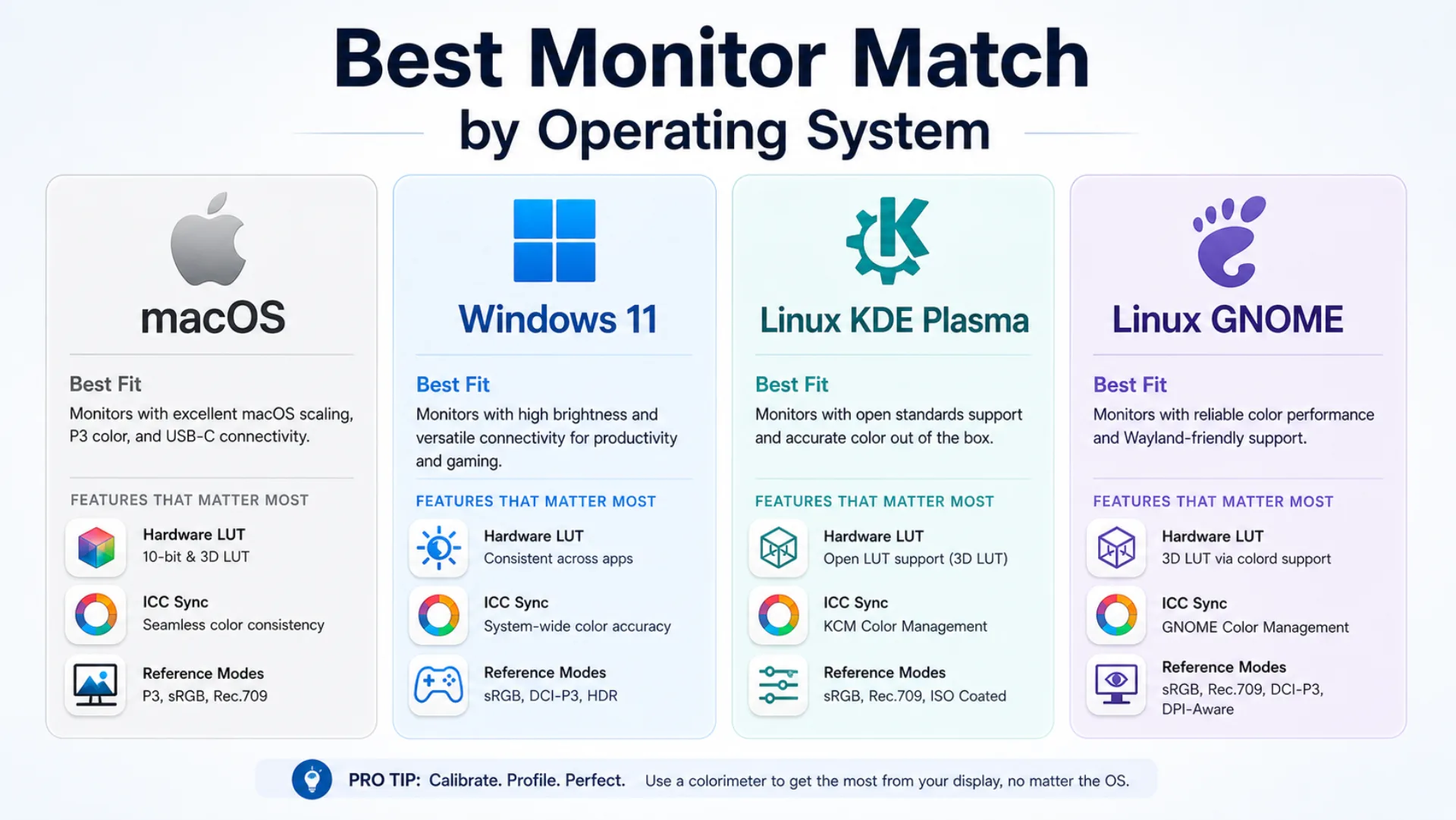
▸ macOS → Apple Studio Display XDR or Pro Display XDR (best). For a third-party option, BenQ DesignVue PD3225U with M-Book mode comes very close.
▸ Windows → Any hardware-LUT monitor — ASUS ProArt, BenQ SW or PD series, EIZO ColorEdge. The hardware LUT compensates for Windows’ fragmented colour pipeline across NVIDIA, AMD, and Intel drivers.
▸ Linux (KDE Wayland) → Any hardware-LUT monitor. The internal LUT sidesteps OS limitations entirely and gives you reliable colour without depending on Wayland tooling.
▸ Linux (GNOME Wayland) → Same approach — hardware-LUT monitor for safety. GNOME 48’s Wayland Color Management protocol works, but profiling apps still have Wayland gaps.
Panel Longevity — The Vendor Numbers
Backlight LEDs degrade roughly proportional to brightness. Verified data from manufacturers and industry sources:
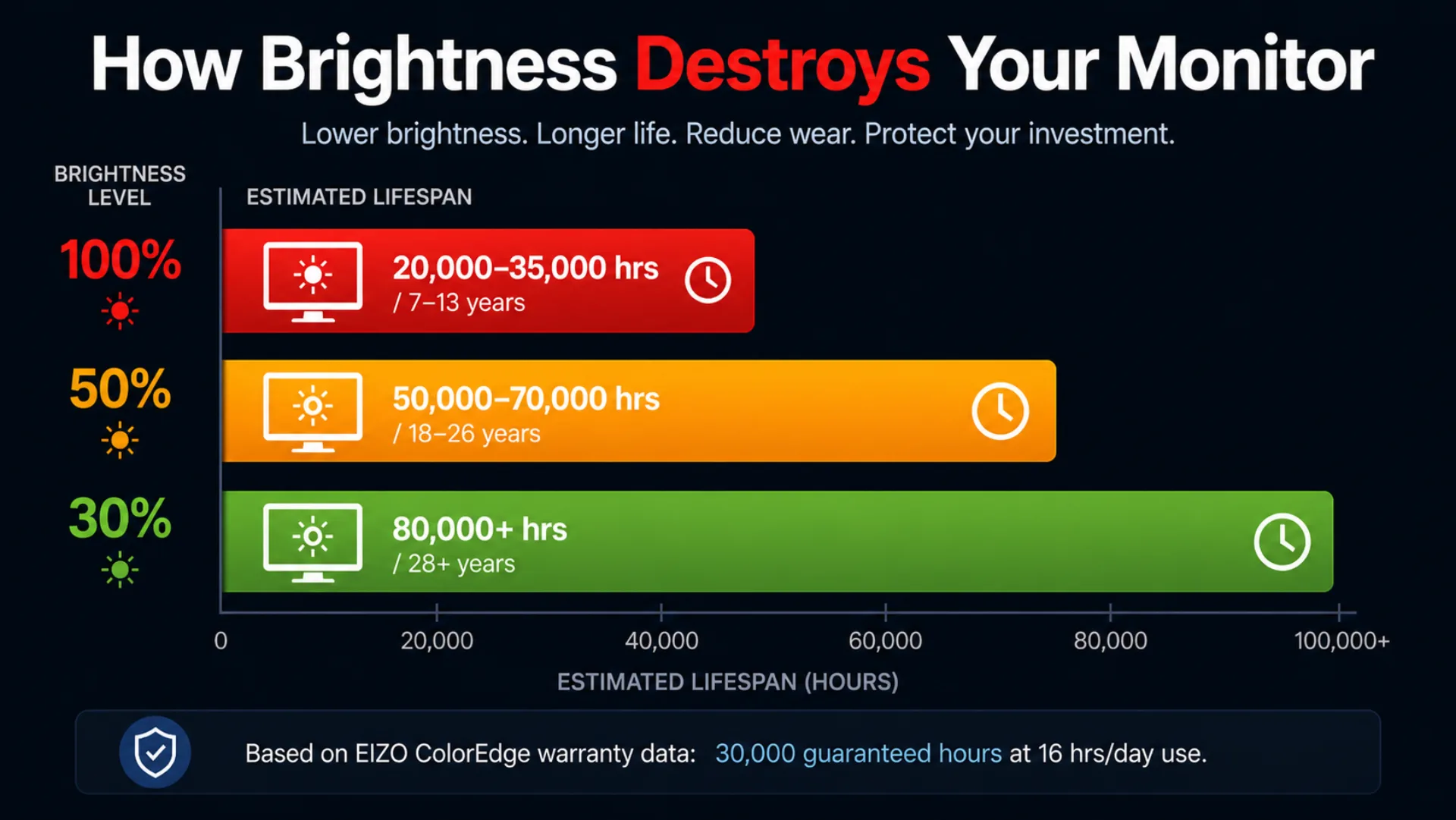
▸ At 100% brightness — 20,000–35,000 hours expected lifespan. About 7–13 years of daily use before noticeable colour drift.
▸ At 50% brightness — 50,000–70,000 hours expected lifespan. About 18–26 years of daily use.
▸ At 30% brightness — 80,000+ hours expected lifespan. 28+ years of daily use.
The data is consistent across major manufacturers. EIZO’s official ColorEdge warranty data is the most credible benchmark in the industry: ColorEdge monitors are warranted for 30,000 hours of operation over 5 years — assumed at 16 hours per day. EIZO explicitly states the lifetime equals the warranted hours and the monitor is engineered to operate without failure for at least that long.
Operating temperature also matters. Above 35°C (95°F) ambient, LED degradation accelerates and L70 drops by up to 30% over 5 years compared with rooms kept at 22°C (72°F).
The Maintenance Process — Keep Your Monitor Accurate for Years
- Buy correctly for your category. Don’t put a TN gaming panel in a photo workflow. Don’t put an sRGB-only monitor in a video editing setup.
- Set the correct preset. sRGB for web, Adobe RGB for print, DCI-P3 for video. Never leave the monitor in “Native” or “Vivid” mode — those are for shop floors.
- Assign the matching ICC profile in your OS. Most users skip this, then complain colours look wrong.
- macOS → System Settings → Displays → Color Profile
- Windows → Settings → Display → Advanced → Colour Management
- KDE Linux → System Settings → Display → ICC Profile, or
kscreen-doctor output.<name>.iccprofile.<path> - Run brightness around 30%. Roughly doubles or triples panel life and dramatically slows colour drift.
- Keep the monitor cool. Decent airflow, no direct sunlight on the panel, ambient under 25°C if possible.
- Re-calibrate periodically with a hardware colorimeter. - Casual photo work: every 6–12 months - Pro print work: every 1–3 months - HDR mastering: monthly
- Hardware to use: - Calibrite Display Pro HL — $280 USD — current pro standard - Calibrite Display Plus HL — $200 USD — slightly older but excellent - Datacolor Spyder X2 Elite — $270 USD — strong alternative - X-Rite i1Pro 3 — $2,000 USD — lab-grade for print certification
- Power cycle properly. Don’t leave the monitor on 24/7. The panel ages while powered on, regardless of whether anything is displayed.
The Short Version
- Gamers need refresh rate and low input lag, not gamut. Buy 240–360 Hz, 1080p or 1440p IPS or QD-OLED.
- Photographers need 4K, 99% Adobe RGB, factory calibration, hardware LUT, Calman Verified, ideally Pantone Validated.
- Print pros need everything photographers need plus FograCert Softproof Monitor, ISO 12646, D50 white point, ≥160 cd/m² luminance.
- Video editors need DCI-P3 minimum, real HDR (DisplayHDR 1000+ or True Black 600 for OLED), reference modes for Rec. 709/Rec. 2020/PQ/HLG.
- Pick your OS deliberately. macOS does the most work for you. Windows and Linux benefit massively from hardware-LUT monitors.
- Hardware-baked calibration cannot be undone by software. That’s why pro monitors are expensive.
- Brightness around 30% triples panel lifespan versus running at 100%.
- Re-calibrate with a hardware colorimeter every few months for pro work.
Colour accuracy is a chain of decisions — panel, calibration, certification, profile, OS, brightness, maintenance — and the weakest link sets the limit for everything downstream.
Sources
- What is Calman Verified? — BenQ
- Calman Verified — Portrait Displays
- Pantone Validated overview — BenQ
- About Pantone Validated — Pantone
- VESA Certified DisplayHDR — VESA
- DisplayHDR Performance Criteria 1.2
- BenQ M-Book mode and Mac compatibility
- BenQ ICCsync and Mac-ready monitors
- Fogra Softproof Monitor certification
- ISO 12646 and monitor proofing — Wikipedia
- LED backlight half-life — Focus LCDs
- Monitor backlight lifespan guide — Intech
- EIZO ColorEdge warranty and lifespan
- GNOME Mutter Wayland ICC profile support — Phoronix
- KDE Plasma Wayland ICC profile guide
- Apple Pro Display XDR reference modes
- Apple Studio Display XDR announcement (2026)
- ASUS ProArt PA279CRV Calman Verified specs
- EIZO ColorEdge CG319X for HDR video
- Best gaming monitor refresh rates 2026 — Switchblade Gaming